
[How-To] Send Workspace ONE Hub Notifications to All Users
In this guide, you will learn how to send a notification to users through Workspace ONE Hub Services. This can be useful when you need to inform employees about maintenance, outages, changes, or important internal updates.
The guide also explains why some users may not receive standard notifications and why the priority setting is important.
This guide is meant for a basic administrative use case. Your environment, user groups, naming, and notification settings may be different.
Cause
In some environments, users may not receive normal Hub notifications if they are not actively signed in to Intelligent Hub on their mobile device. This can happen because users do not open the Intelligent Hub app regularly or because their session has expired.
Solution
If the notification is important and should reach users even when they are not currently active in Intelligent Hub, set the priority to Urgent. This increases the chance that the notification is delivered as a push notification to the device.
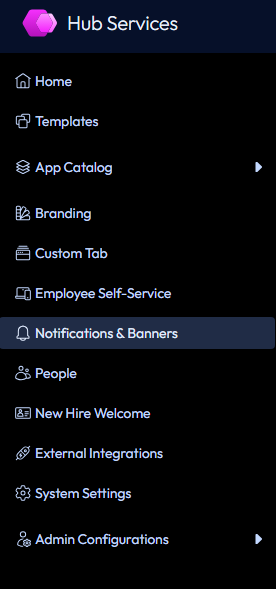
Open Workspace ONE Hub Services in your browser. Then go to Notifications & Banners on the left side.
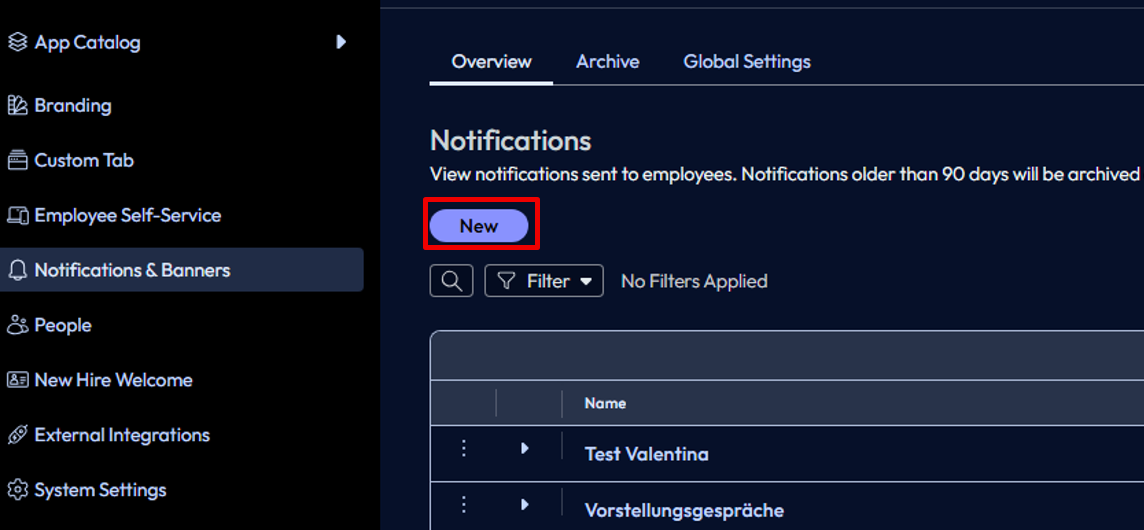
Click New.
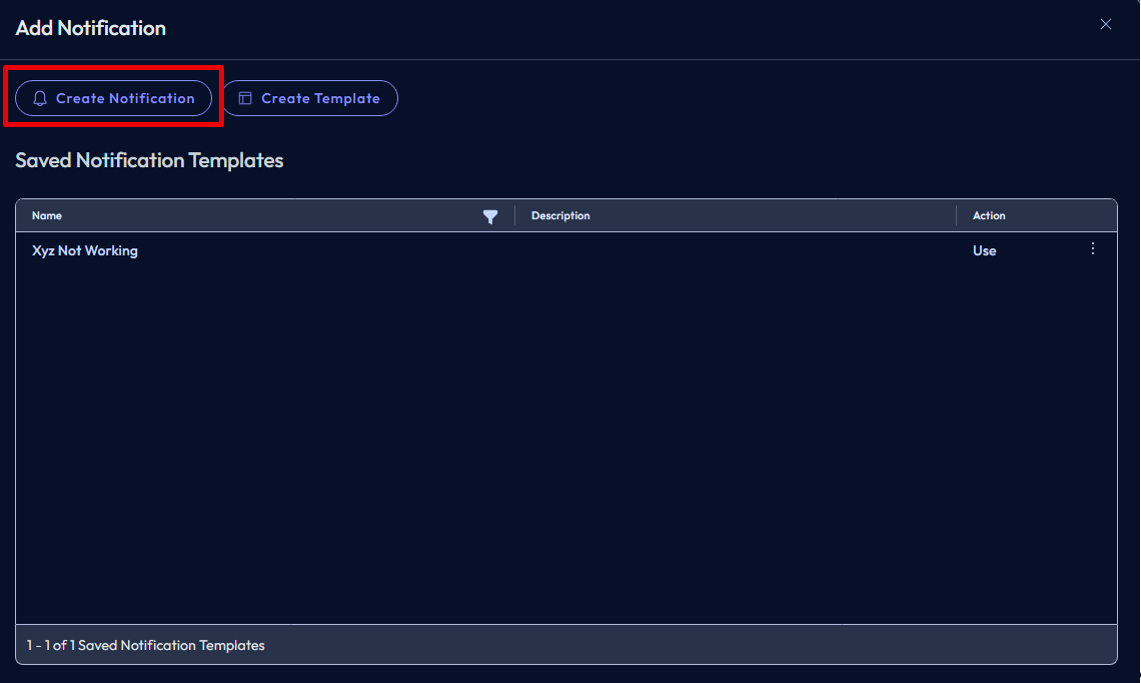
Then select Create Notification.
For Priority, select Urgent.
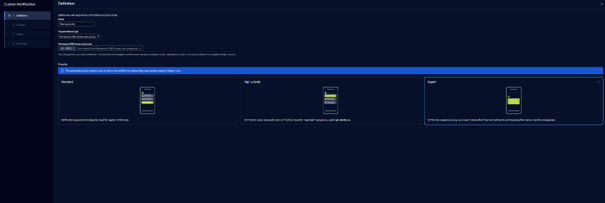
For Priority, select Urgent.
Final Test
After publishing, test the notification with a small group or a test user first if possible.
Verify that the notification appears in Intelligent Hub and that push notifications are received on mobile devices.
If users do not receive the notification, check whether the correct target audience was selected, whether push notifications are allowed on the device, whether Intelligent Hub is installed, and whether the priority was set to Urgent.
If these checks are successful, your Workspace ONE Hub notification is ready.
Next Steps
If you’ve read this far then chances are you are still having issues. Feel free to reach out to us. We’re happy to help out!






Leave a Reply