
[How-To] Migrate Workspace ONE UEM Users Between Two Separate Active Directory Forests
If you are using two separate Active Directory environments and want to move users from one environment to another, Workspace ONE UEM needs a reliable way to recognise that the user in the new domain is still the same person.
Before starting the migration in Workspace ONE UEM, the new Active Directory must already be configured and reachable in UEM. The users also need to exist in the new Active Directory before the matching process is started.
In our LAB, we tested this scenario with two completely separate AD forests. The goal was to move an existing Workspace ONE user to the new domain while keeping the already enrolled devices assigned to the same user.
Prepare the User Migration
First, check the existing user in the old Active Directory.
Get-ADUser username -Properties objectGUID,'mS-DS-ConsistencyGuid'
The user has an existing Object GUID. This value can be used as a consistent identifier for the migration.
Set the existing Object GUID as the mS-DS-ConsistencyGuid of the user in the old Active Directory.
$User = Get-ADUser username -Properties objectGUID
Set-ADUser $User -Replace @{
'mS-DS-ConsistencyGuid' = $User.ObjectGUID.ToByteArray()
}
Verify the value afterwards.
Get-ADUser username -Properties objectGUID,'mS-DS-ConsistencyGuid' |
Select-Object SamAccountName,ObjectGUID,'mS-DS-ConsistencyGuid'
The same identifier must now be assigned to the corresponding user in the new Active Directory forest.
First, copy the Object GUID from the old user and use it for the new user.
$Guid = [Guid]'df3bb7dc-2ad9-4a6f-911d-254b293b2a3d'
Set-ADUser username -Replace @{
'mS-DS-ConsistencyGuid' = $Guid.ToByteArray()
}
Verify the value in the new Active Directory as well.
Get-ADUser username -Properties objectGUID,'mS-DS-ConsistencyGuid' |
Select-Object SamAccountName,ObjectGUID,'mS-DS-ConsistencyGuid'
The users in both forests now have different objectGUID values, but the same mS-DS-ConsistencyGuid.
Configure the Object Identifier in Workspace ONE UEM
In Workspace ONE UEM, navigate to:
Groups & Settings → All Settings → System → Enterprise Integration → Directory Services → User→Advanced
Change the Object Identifier from:
objectGUID to mS-DS-ConsistencyGuid
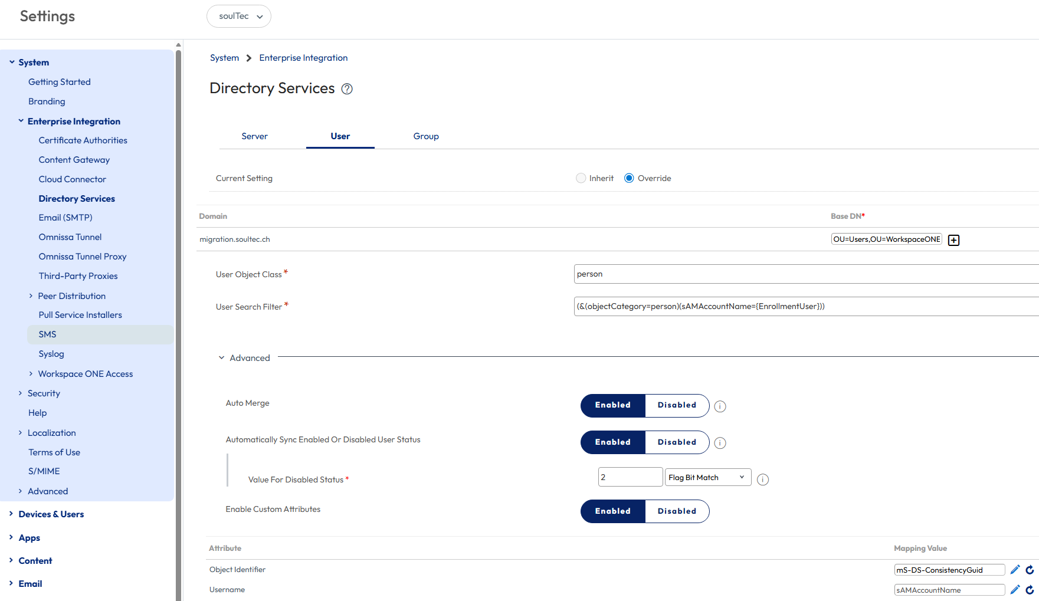
The Object Identifier Data Type should remain Binary.
Afterwards, update the Directory Services configuration so that Workspace ONE connects to the new Active Directory. This includes the new domain, LDAP server, Bind User and Base DN.
Before continuing, use Test Connection and Check User to make sure Workspace ONE can successfully find the user in the new Active Directory.
Then navigate to:
Accounts → LDAP Sync
Create a new LDAP Sync job and select only one test user first.
Enable Use External ID and select the available refresh options for User DN and Object Guid.
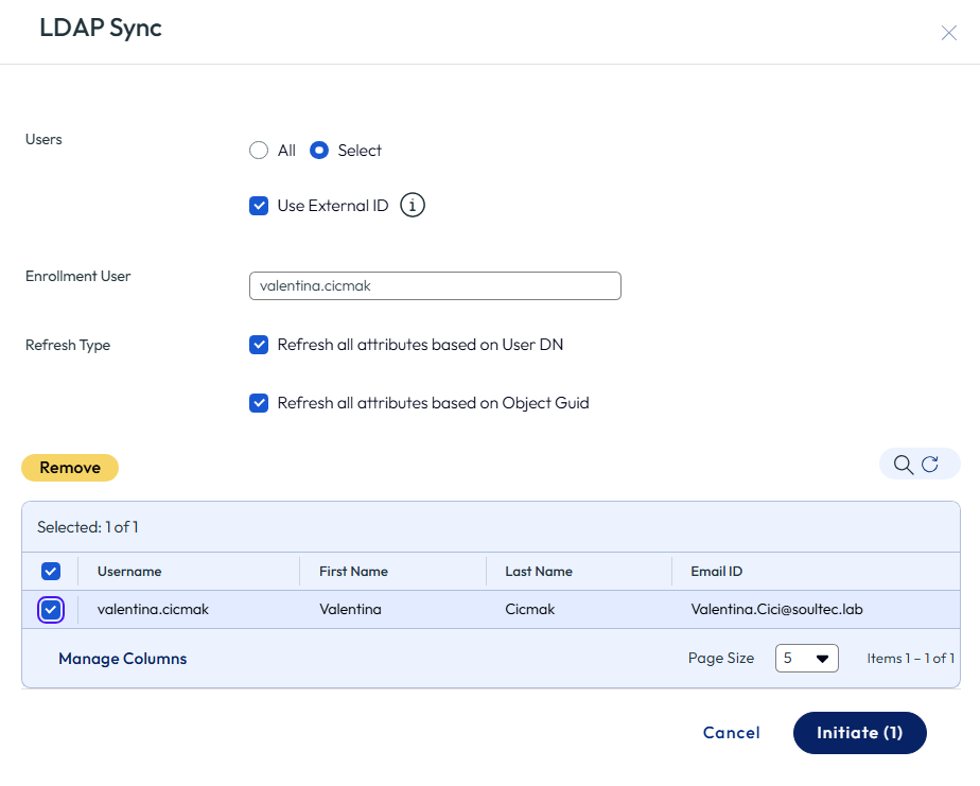
The sync job will first appear as Pending Approval. This gives you the opportunity to verify which users will be changed before the migration is applied.
After approving the sync, Workspace ONE updates the existing user with the information from the new Active Directory instead of creating a second user.
In our LAB test, the existing Workspace ONE user was successfully migrated to the new AD forest. The domain, Distinguished Name and User Principal Name were updated, while the already enrolled devices remained assigned to the same Workspace ONE user.
For the Workspace ONE UEM part of the migration, no new Intelligent Hub enrollment was required in our test.
Before performing the migration in production, we recommend testing the process with one or two pilot users first.
Next Steps
If you’ve read this far then chances are you are still having issues. Feel free to reach out to us. We’re happy to help out!











Leave a Reply