
[How-To] Intelligent Hub on macOS Not Synchronizing After an Active Directory User Name Change
After changing a user’s name in Active Directory, the new information may already be visible in Workspace ONE UEM and Omnissa Access while Intelligent Hub on the Mac still displays the old name.
Trigger the Synchronization Manually
Open Terminal on the affected Mac and run:
sudo hubcli sync
After the command has completed, quit and reopen Intelligent Hub. The updated user information should now be displayed.
Before running the command, verify that the new name is already correct in Active Directory, Workspace ONE UEM, and Omnissa Access.
Automate the Synchronization with Workspace ONE UEM
The synchronization can also be automated using a macOS script in Workspace ONE UEM.
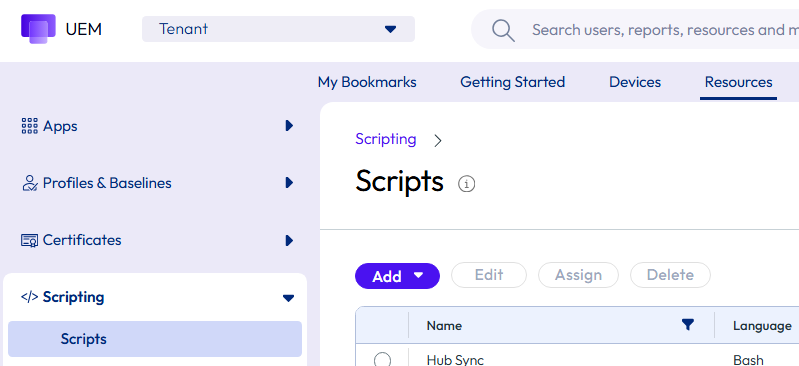
Navigate to:
Resources → Scripting → Scripts → Add
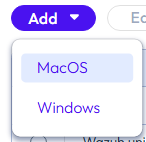
choose MacOS
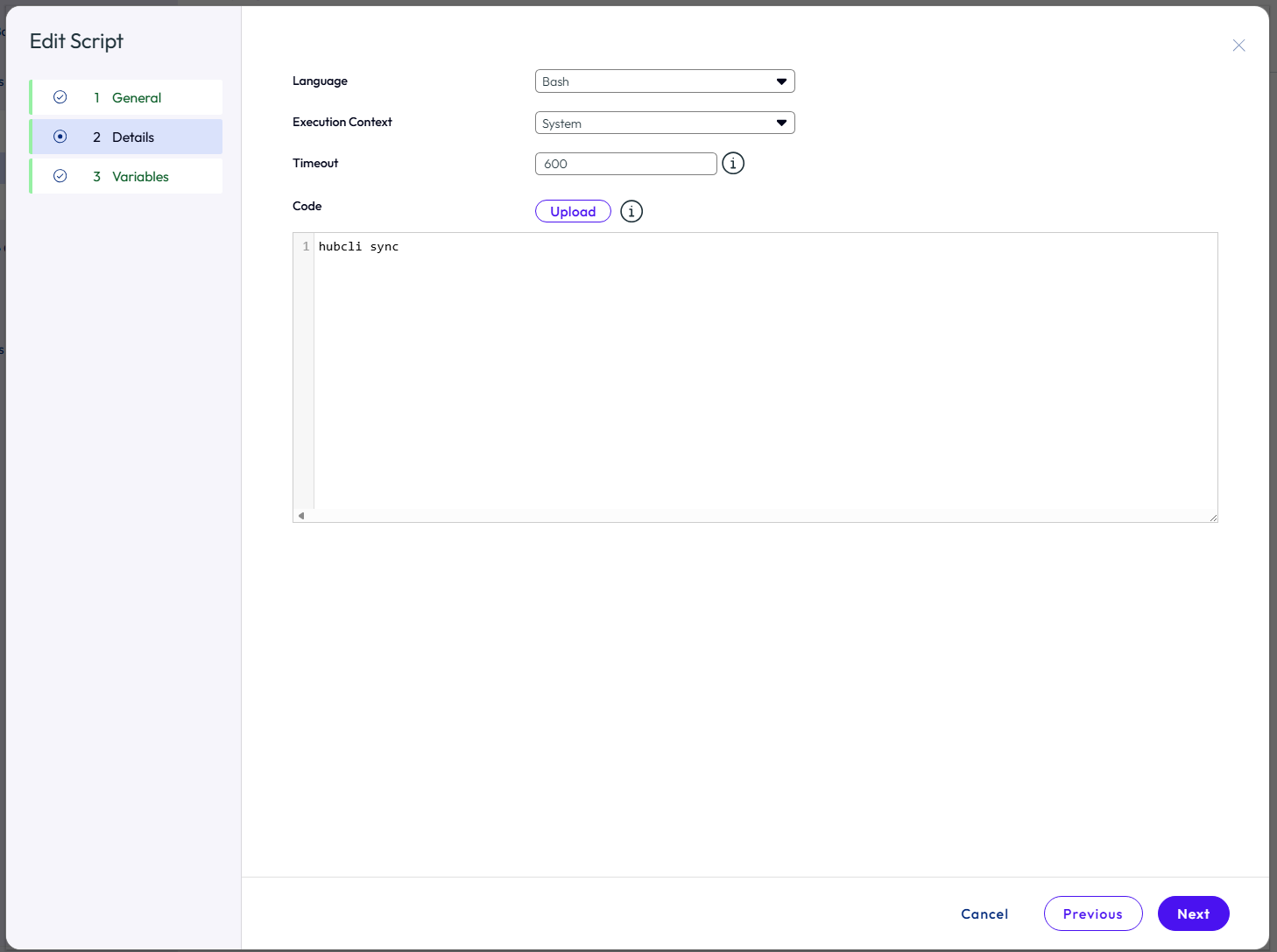
Configure the script with the following settings:
- Name: Hub Sync
- Language: Bash
- Execution Context: System
- Timeout: 600 seconds
Use the following code:
hubcli sync
Save the script and assign it to the relevant MacBooks. The script can then be executed automatically using the required assignment schedule or trigger.
Important
The command refreshes the information displayed by Intelligent Hub. It does not rename the local macOS account or its home directory.
If the old name remains visible, verify that the device is assigned to the correct directory user and that the updated user information has successfully synchronized with UEM and Access.
Next Steps
If you’ve read this far then chances are you are still having issues. Feel free to reach out to us. We’re happy to help out!






Leave a Reply