

[How-To] Connect Active Directory to IGEL UMS
Connecting Active Directory to the IGEL Universal Management Suite allows selected AD users or groups to access the UMS with their existing domain credentials.
This guide explains how to configure the connection, import AD users or groups as UMS administrators and assign the required permissions.
Requirements
- Access to the classic UMS Console
- DNS resolution between the UMS Server and the domain controller
- An AD account with read permissions
- Network access over LDAP port `389` or LDAPS port `636`
- A dedicated AD group containing the UMS administrators is recommended
Add the Active Directory Connection
Open the classic UMS Console and navigate to:
UMS Administration → Global Configuration → Active Directory / LDAP
Click the + button and configure the connection:
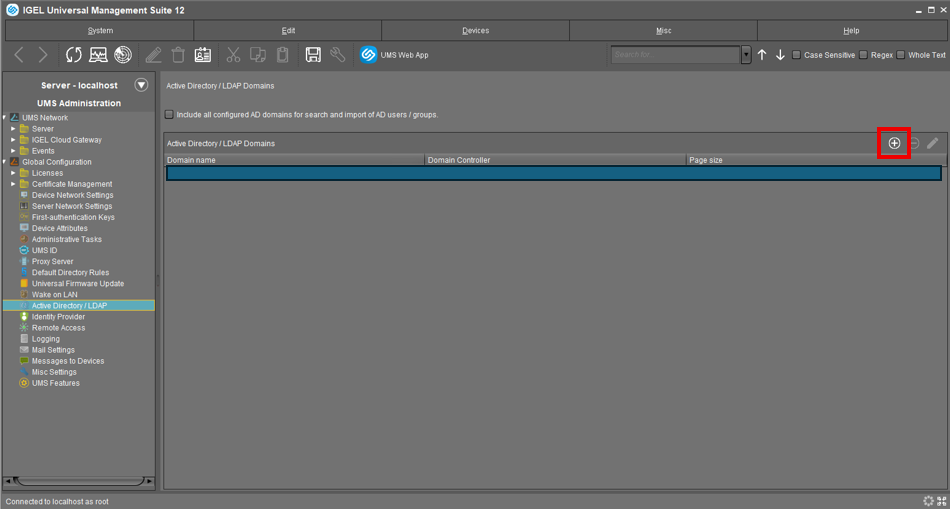
Depending on your environment, the configuration may look as follows:
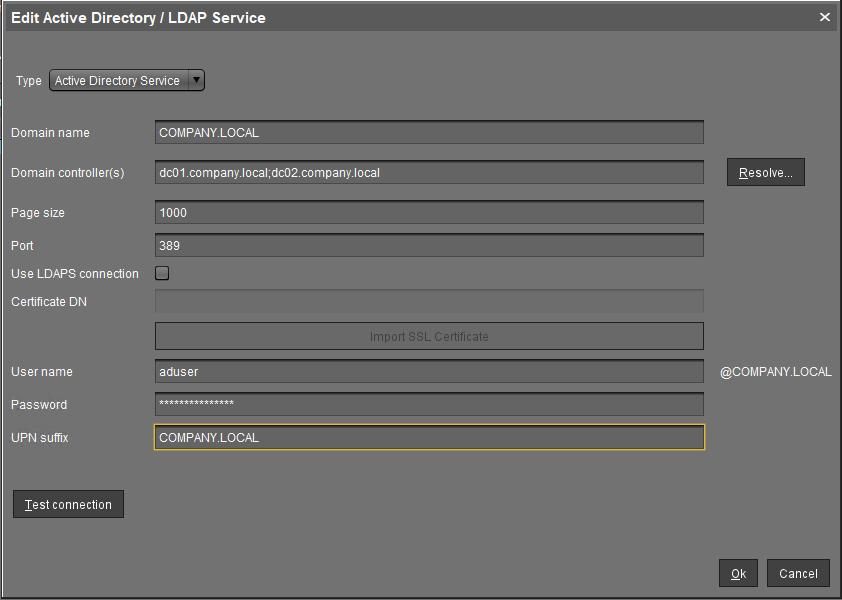
For an encrypted connection, enable Use LDAPS connection and use port 636. A valid certificate must be imported.
Click Test Connection. If the configuration is correct, the connection test is successful.
Confirm the configuration with OK. The domain now appears under Active Directory / LDAP Domains.
Import an AD Group
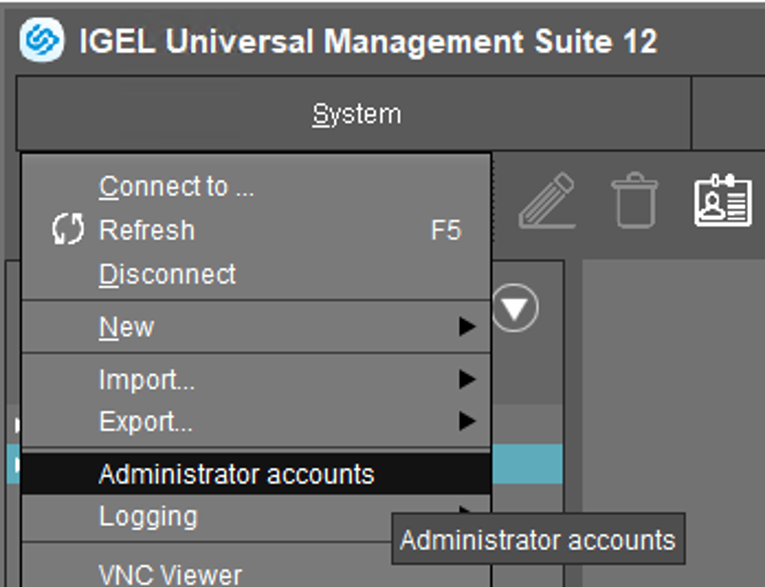
Navigate to:
System → Administrator Accounts
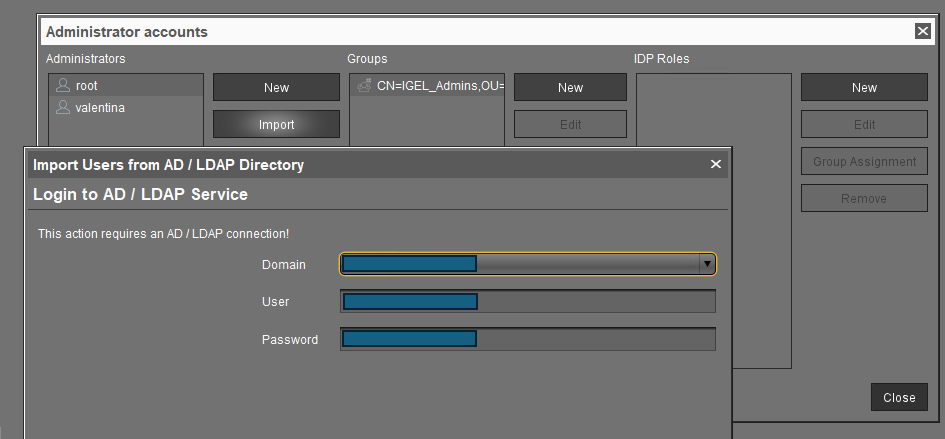
Click Import, select the configured domain and enter valid AD credentials.
Click Next to open the Active Directory browser.
For example, to import the Active Directory group IGEL_Admins, enter:
- Account name: IGEL_Admins
- Object type: Group
Click Search and move the group to Selected Entries using drag and drop.
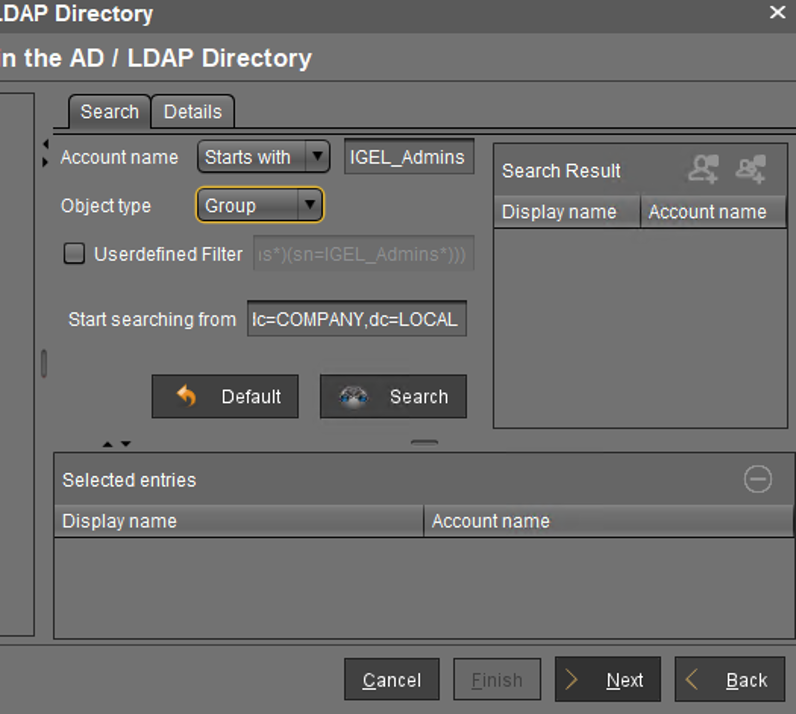
Click Next and then Finish to complete the import.
Assign Permissions
Select the imported group under System → Administrator Accounts → Edit
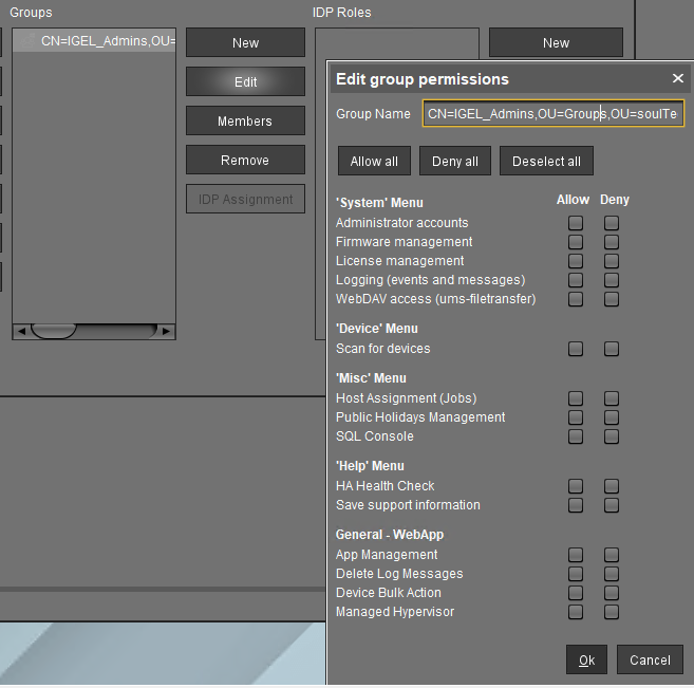
Members of the imported group can now log in to the UMS using the following format:
username@company.local
Next Steps
If you’ve read this far then chances are you are still having issues. Feel free to reach out to us. We’re happy to help out!










Leave a Reply