
[How-To] Fix Static Windows Network Settings Reset After Reboot
If you ended up on this blog, you are probably dealing with the issue that your network settings keep getting lost after a reboot. This is especially annoying when the IP address, gateway, or DNS server should actually be configured statically, but are missing or overwritten again after restarting.
You can work around this issue by setting the network configuration directly via CMD using netsh. This stores the values directly for the network interface and helps keep them in place even after a reboot.
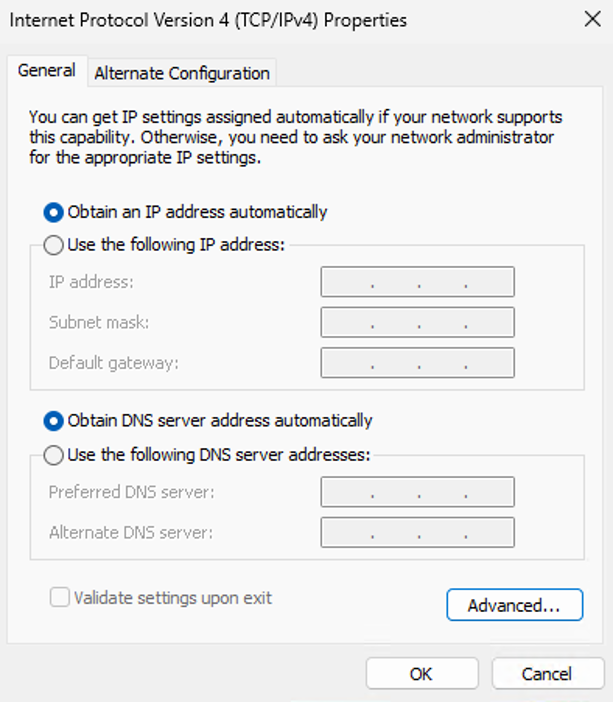
Solution
If network settings in Windows keep getting reset after a reboot, the IP address, gateway, or DNS server can be set manually via Command Prompt.
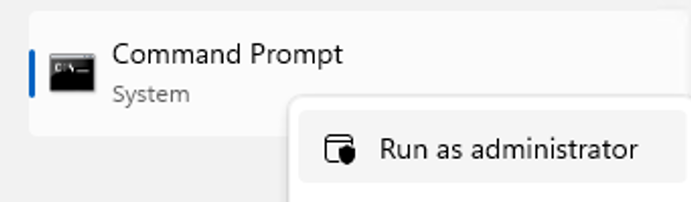
To do this, open CMD as administrator and configure the network settings using netsh.
A static IPv4 address including subnet mask, gateway and DNS can be set like this:
netsh interface ipv4 set address name="INTERFACE_NAME" static IP_ADDRESS SUBNET_MASK GATEWAY

netsh interface ipv4 set dnsservers name="INTERFACE_NAME" static DNS_SERVER primary

netsh interface ipv4 add dnsservers name="INTERFACE_NAME" address=SECONDARY_DNS_SERVER index=2
INTERFACE_NAME, IP_ADDRESS, SUBNET_MASK, GATEWAY, and DNS_SERVER must be replaced with the correct values for your Windows environment. After that, the network settings should remain in place even after a reboot. Below you can find an example configuration.
netsh interface ipv4 set address name="Ethernet0" static 192.168.1.50 255.255.255.0 192.168.1.1

netsh interface ipv4 set dnsservers name="Ethernet0" static 192.168.1.10 primary

netsh interface ipv4 add dnsservers name="Ethernet0" address=192.168.1.11 index=2
Next Steps
If you’ve read this far then chances are you are still having issues. Feel free to reach out to us. We’re happy to help out!











Leave a Reply